With all of our Mobilo Cards, you’ll be able to update or add contact information to your virtual card at any time and as many times as you need to. Changed your social media handles? No problem, this “how-to” will help!
In this article, we’ll show you how to add your social media links to your virtual contact card.
To share your social media pages, it is important to add your full URLs and not your handles. For example, to add
-
WhatsApp: Use the following template https://wa.me/123456789 where the “123456789” is a full phone number including the country code (without the “+” sign).
-
Instagram: The correct link to enter for Instagram would be https://www.instagram.com/mobilodigital/ instead of @mobilodigital.
Through the website
To add your social media links through our web portal, you may
-
Go to app.mobilocard.com.
-
Log in using your email and the one-time code that will be sent to your email.
-
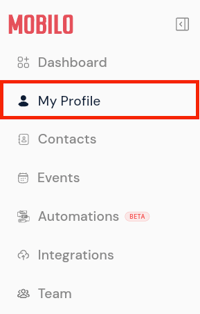
Go to My Profile on the left-hand side menu.
-
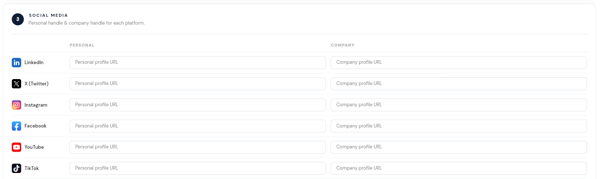
Scroll down to the Social Media section, or look for it using the search bar at the top of the screen.
-
Look for the fields that you'd like to use and paste your URLs.
-
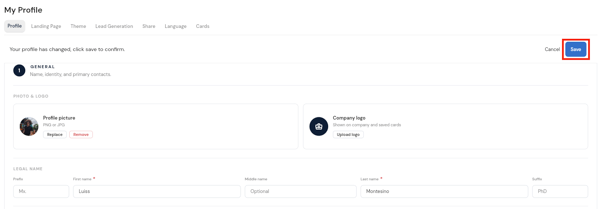
Hit the blue Save button at the top of the screen.
Through the mobile app
To add your social media links through the Mobilo app on your phone, you may
-
Download the Mobilo Card App from App Store or Google Play Store.
-
Log in using your email and the one-time code that will be sent to your email.
-
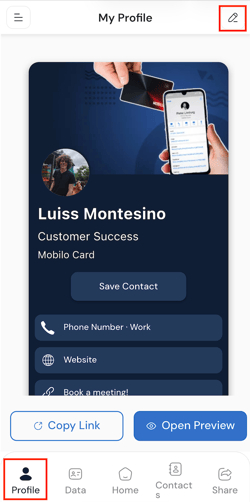
Go to Profile and click the pencil icon at the top right.
-
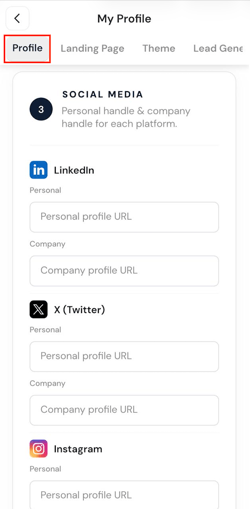
Under the Profile tab, scroll down to the Social Media section, or look for it using the search bar at the top of the screen.
-
Look for the fields that you'd like to use and paste your URLs.
-
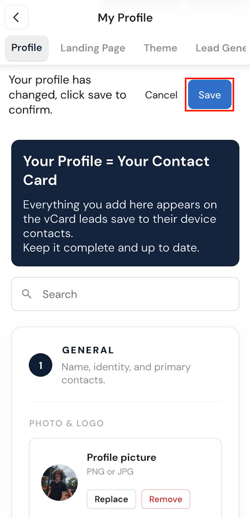
Hit the blue Save button at the top of the screen.
Any questions?
Kindly contact us, and we will be happy to help!
If you are already chatting with us, type "Live Support," and you will be connected with one of our specialists, or contact us via email at support@mobilocard.com, and we can answer any questions you may have.