A brand new way to generate leads with Mobilo!
Have you encountered others who still use regular business cards? We know it is difficult for some people to keep up with technology, but that's not a reason to worry, as we have thought about them as well. Now we want to set you free of the need to transcribe everything into your CRM or your Mobilo profile.
We welcome the Badge Scanner feature to our mobile app!
Here's how to use it:
-
Download the Mobilo Card App from the App Store or Google Play Store.
-
Log in using your email address and the one-time code that will be sent to your email.
-
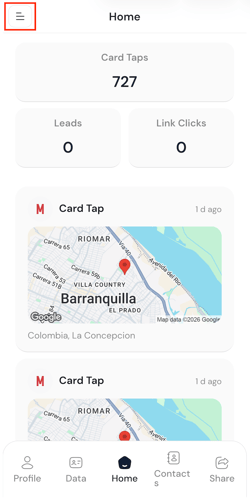
Click the Menu or ≡ icon at the top left.
-
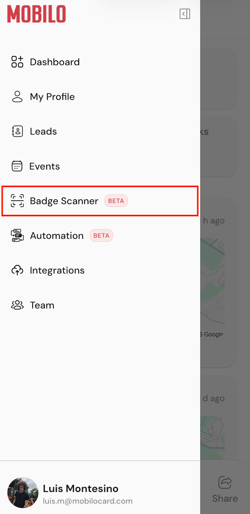
Tap Badge Scanner.
-
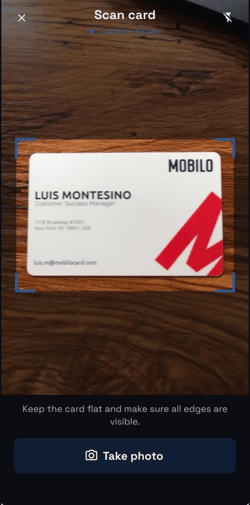
Place the business card or badge in the photo frame and click Take photo.
-
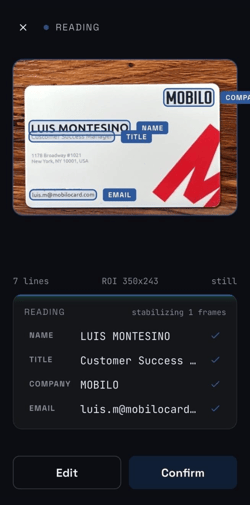
If you wish to correct the information, tap Edit.
-
Make the necessary changes and click Confirm.
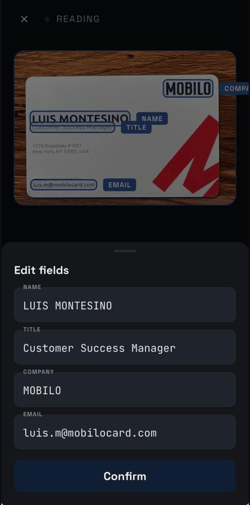
- Click Confirm again, and that’s it! You now have a new lead in your Mobilo account, and y ou will be able to view it on the Contacts tab.
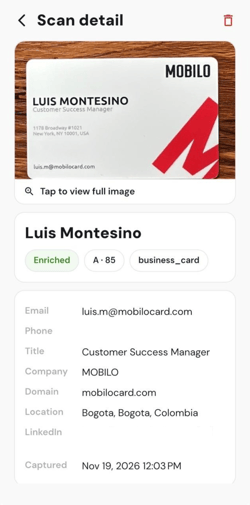
- Finally, you will be shown the Scan detail screen where you will see all the collected information, including the enriched details that our system finds online about your contact.
Any questions?
Kindly contact us, and we will be happy to help!
If you are already chatting with us, type "Live Support," and you will be connected with one of our specialists, or contact us via email at support@mobilocard.com, and we can answer any questions you may have.