On this page
- Who can manage tab visibility?
- Which tabs and features can be hidden?
- How to change tab visibility?
- What happens when a tab is hidden?
- Turning a tab back on
Who can manage tab visibility?
Only Organization Admins can change tab visibility settings. These settings apply to all regular users in the organization.
Tab visibility is managed at the organization level, so settings cannot be configured separately for individual users, groups, or departments.
Which tabs and features can be hidden?
Organization Admins can independently show or hide the following tabs and features:
-
Email Signatures
-
Automations
-
Integrations
-
Invoices & Billing
-
Buy More
-
AI / Lead Scoring
-
Geo Location Graph
-
Onboarding Screens
-
Card Admin (release and reassign options)
-
Card Mode Switching
-
Dashboard
-
Profile
-
Lead Generation / Leads
-
Landing Page
-
Theme
-
Share
-
Language
-
Cards
How to change tab visibility?
-
Sign in to buy.mobilocard.com.
-
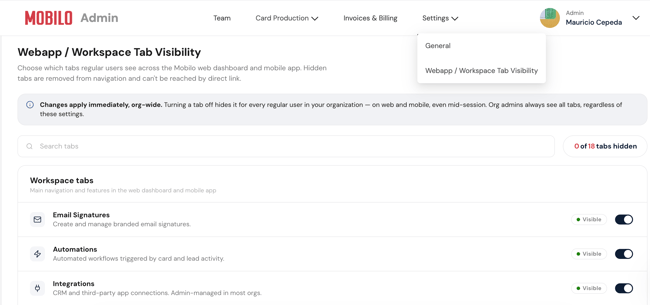
Click on the "Settings" tab at the top.
-
Click on the "Workspace Tab Visibility" option.
-
Find the tab or feature you want to change.
-
Turn the corresponding setting on or off.
By default, all tabs are toggled on, and therefore visible to all users. Each setting can be changed independently, so you can hide only the features that are not relevant to your team members.
What happens when a tab is hidden?
When a tab or feature is hidden, it is immediately removed from the interface for regular users. Organization Admins continue to see all tabs and features regardless of the visibility settings.
Changes take effect immediately, including for users who are already signed in. The change applies across both the Mobilo web dashboard and mobile app.
Turning a tab back on
An Org Admin can turn a hidden tab or feature back on at any time. Once enabled, it becomes available for all team members again.
Important to know
-
Tab visibility settings apply to the entire organization.
-
Department Admins cannot manage these settings.
-
You cannot hide a tab for only one user or one group.
-
This feature is available to organizations on Team plans.
Any questions?
If you require assistance adding another language, kindly contact us, and we will be happy to help!
If you are already chatting with us, type "Live Support," and you will be connected with one of our specialists, or contact us via email at support@mobilocard.com, and we can answer any questions you may have.