On this page
Where to go to customize your digital card?
You can customize your card through the mobile app or the website/desktop version, and we'll show you how to access the "Edit Design" section below.
On the website
-
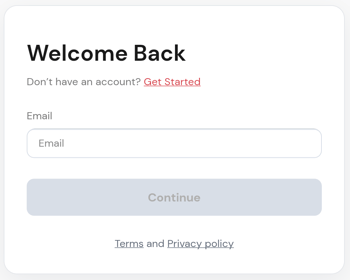
Log in to app.mobilocard.com using your email address and the one-time code that will be sent to your email.
-
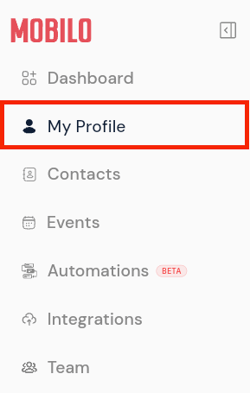
Go to "My Profile" on the left panel.
-
Click the "Share" tab at the top of the screen.

-
Click the "Edit Design" button.

On the mobile app
-
Download the Mobilo Card app from the App Store or Google Play Store.
-
Log in using your email address and the one-time code that will be sent to your email.
-
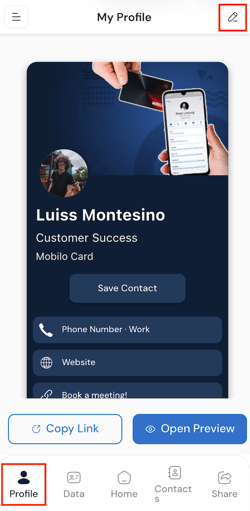
Go to the "Profile" section at the bottom of the screen and click the pencil icon in the upper right corner.
-
Scroll through the tabs at the top and click on "Share".

-
Click on "Edit Design".

What changes can I make?
By default, your Digital Wallet Card will include your name and email address. However, under "Edit Design", you'll be able to
-
Include or hide your profile picture and logo by using the two toggles shown below. You can upload these images under the Theme tab.

-
Include or hide your title by using this toggle.

-
Select the background and text colors by clicking on the respective fields shown below.

Important
To ensure a uniform look, the colors on the Digital Wallet Card are synced to those on the landing page. For instance, if the landing page has a red background, the Digital Wallet card will have a red background too.
Any questions?
If you require any assistance or if there's anything that isn't clear, feel free to contact us at support@mobilocard.com or type in "Live Support" if you're chatting with us, and one of our specialists will be happy to help.