We live in a connected world. Why would your business card be the exception?
Mobilo allows you to share your contact information at any time and on different platforms. You can add the QR code found on your card to every email you send to make networking even easier!
Important
The Email Signature feature is only available on the desktop version of the app, app.mobilocard.com, not on the mobile app.
Generating your email signature
To generate a signature with your QR code, you may
-
Go to app.mobilocard.com.
-
Log in using the email your card is linked to and the one-time code that will be sent to your email.
-
Go to My Profile on the left-hand side menu.
-
Click on Share.
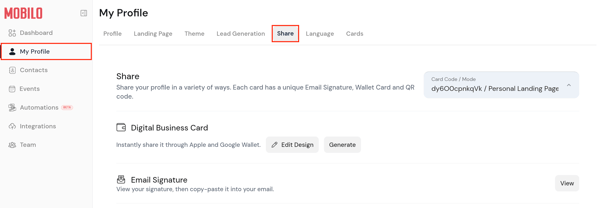
-
If you have more than one card, select the card you want to use from the Card Code/Mode drop-down menu on the top right. You can find this alphanumeric code on your physical cards below the QR code.
-
Click on View next to Email Signature.

-
A new tab will open where you can copy your email signature and then paste it.

Pro Tip
The signature is in simple text form, so if you want to make any adjustments, you can edit it after you paste it.
Need Help?
If you require assistance, kindly contact us, and we will be happy to help!
If you are already chatting with us, type "Live Support," and you will be connected with one of our specialists, or contact us via email at support@mobilocard.com, and we can answer any questions you may have.