If email communications were enabled during the card design submission process, you should receive an email with a temporary password to sign in. If you did not receive these instructions by email, please check your spam folder. In any case, you can reset the password by following the steps in this article.
-
Download the Mobilo Card mobile app from the App Store or Google Play Store. You can also visit our web portal at app.mobilocard.com
-
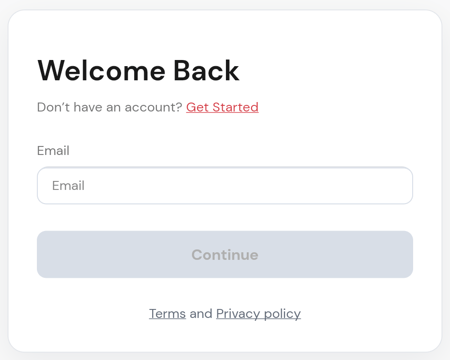
Enter your email address and click Continue.
-
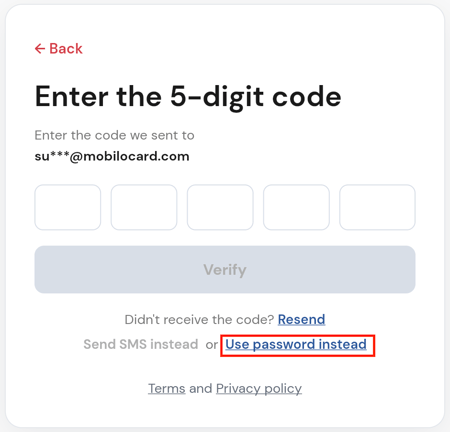
Click on Use Password Instead.
-
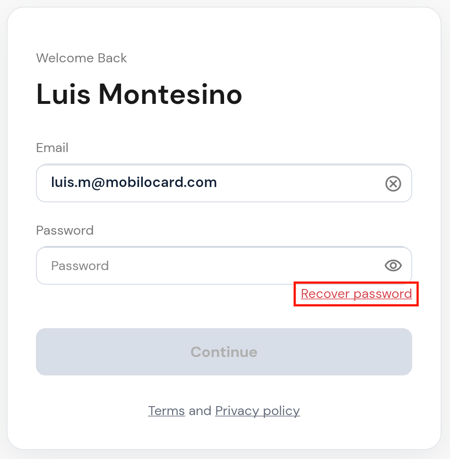
Click on Recover Password.
- Click Continue.
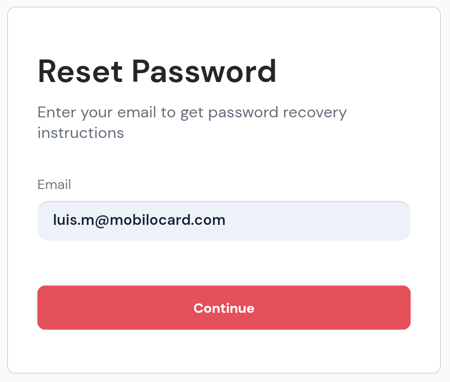
- Finally, you will get an email with a link to reset your password. Open the email, click on the Reset Password button, and you will be asked for the new password that you'd like to set.
If you did not receive the Reset Password email you requested, check your spam folder!
If you can't find it there, the password reset request is likely being blocked by a firewall. Kindly check with your IT team to ensure noreply@mobilocard.com is whitelisted and added to the trusted contacts. Once this is done, please request a new Reset Password email.
Any questions?
If you require assistance adding another language, kindly contact us, and we will be happy to help!
If you are already chatting with us, type "Live Support," and you will be connected with one of our specialists, or contact us via email at support@mobilocard.com, and we can answer any questions you may have.