We understand that, as an admin, making sure profiles are always up to date while making matters as easy as possible for users is key. Therefore, here at Mobilo, we have streamlined the process so that you can make the necessary adjustments easily, at any time.
To edit someone else's profile, you may follow the steps listed below.
-
Go to app.mobilocard.com and sign in.
-
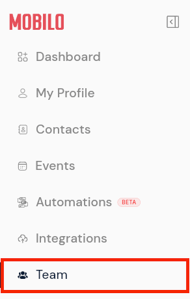
On the left panel, go to the Team section.
-
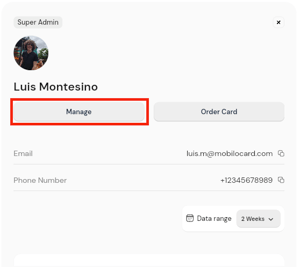
Look for the member in question and click on their name. You can also type in their name in the search bar at the top.

-
Hit Manage on the panel that will appear on the right side of the screen.
-
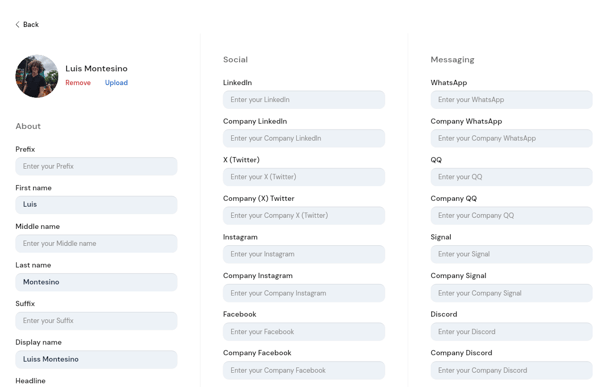
You will be routed to the screen where you can enter or edit their contact details by clicking on the fields.
-
Once the adjustments are completed, you may click the Save button that will appear at the bottom of the screen.

After the changes are saved, they will be reflected the next time the cards are used.
Additionally, it is important to highlight that admin features such as Profile Management are exclusively available through our TEAM Plan. If you aren't part of this plan, you will encounter a banner allowing you to upgrade, like the one shown in the image below.

Important
Our QR codes are dynamic; therefore, they will always share the information that is currently on the profile, and it is not necessary to generate a new code after changes are made.
This allows users to continue using the QR code on their Mobilo card or printed material.
Don't Miss This
If you're an Admin on a Team plan, we've set up an AI-guided training available at any time to help you get comfortable in the admin panel. It walks through the full layout (managing your team members, groups, team landing page design, and many other settings) so you know where everything lives and how to use it day to day.
Start the guided training here!
Any questions?
Kindly contact us, and we will be happy to help!
If you are already chatting with us, type "Live Support," and you will be connected with one of our specialists, or contact us via email at support@mobilocard.com, and we can answer any questions you may have.