Mobilo Card is the best Business Card tool for teams! Our solution allows admins to manage their members' information, add new employees, and also delete them if they have left the organization. As an administrator, you can delete users and manage cards within the app.
Step-by-step guide to remove members
To delete users, follow these steps:
-
Go to app.mobilocard.com and log in.
-
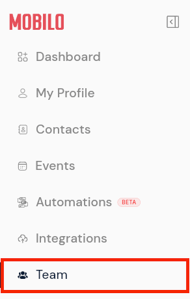
In the left-hand side menu, click on Teams.
-
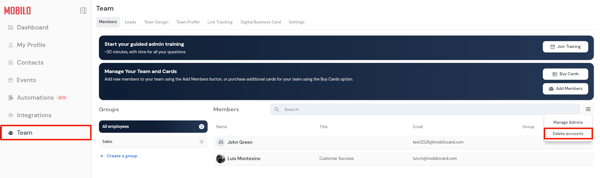
Click the Menu or ≡ icon and select Delete Accounts from the dropdown menu.


Important
Be cautious when deleting accounts, as it is irreversible. Deleting an account will unassign active licenses and deactivate Mobilo cards and accessories.
Please note that we do not issue refunds for deactivated Mobilo products.
At the moment, admins can only delete up to 10 users at a time. If you need to delete users in bulk, please contact our Support team.
Don't Miss This
If you're an Admin on a Team plan, we've set up an AI-guided training available at any time to help you get comfortable in the admin panel. It walks through the full layout (managing your team members, groups, team landing page design, and many other settings) so you know where everything lives and how to use it day to day.
Start the guided training here!
Need help?
If you require assistance removing members, kindly contact us, and we will be happy to help!
If you are already chatting with us, type in "Live Support" and you will be connected with one of our specialists, or contact us via email at support@mobilocard.com, and we can answer any questions you may have.