In the midst of events and conferences, you may only have a few seconds to connect with others; therefore, it is key to take advantage of these brief exchanges, and your Mobilo card can help you do just that.
With Mobilo, you can share your contact information in the form of a customized landing page that represents your brand while also asking others for their contact information. This allows you to make a valuable first impression and follow up with them as needed.
To accomplish this, you have two options that you can choose between, depending on your needs: Share First and Ask First.
On this page
- Share First vs. Ask First
- How do I enable Ask First or Share First?
- How do I disable Ask First or Share First?
Share First vs. Ask First
| Share First | Ask First |
| This option is helpful when sharing your information is most important. | This option can come in handy when collecting others' information is most important. |
| The Landing Page is presented first, and after the user clicks on Save Contact, the Lead Generation form will appear. | The Lead Generation form is presented first, and after it is filled out and submitted, your Landing Page with your contact details will appear. |
| This option allows you to set up automatic downloads of the contact card, so recipients don't have to click on Save Contact. | This option doesn't allow you to set up automatic downloads of the contact card, so the person must click on Save Contact to access the contact card. |
How do I enable Ask First or Share First?
To use either of these, the card must be in Landing Page mode, and you can check this or change the mode if needed by following the steps in this article.
Once your card is in Landing Page mode, kindly follow the steps listed below.
-
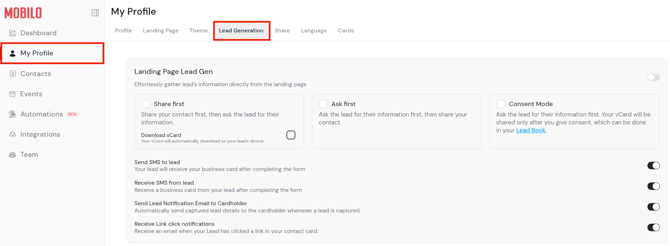
Go to app.mobilocard.com > My Profile and click on the Lead Generation tab at the top.
-
Turn on the toggle at the top right by clicking on it. This toggle is highlighted in the following screenshot.

-
Once the toggle is turned on, Share First will be selected by default; however, you can click on Ask First if you'd like to change it.

-
If you're using Share First, you can enable automatic downloads of the contact card by checking the Download vCard box.

-
That's it! You can start using your card in the selected mode.
How do I disable Ask First or Share First?
If your card is in Landing Page mode, but you don't want to collect others' details, you can disable Ask First or Share First by following the steps here.
-
Go to app.mobilocard.com and log in with your email address and password.
-
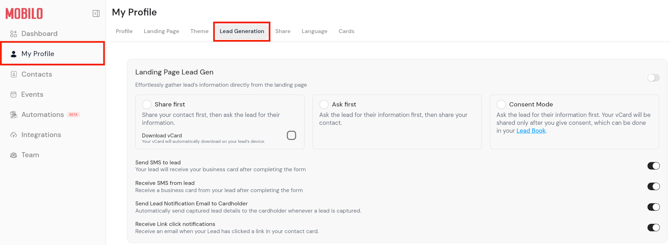
Go to My Profile and click on the Lead Generation tab at the top.
-
Turn off the toggle at the top right by clicking on it. The toggle is highlighted in the following screenshot.

-
You will now be able to use the card in Landing Page mode and the Lead Generation form won't be presented.
Important
Mobilo Cards are by default in Landing Page > Share First mode with automatic downloads enabled; however, with the steps described in this article, you can switch to Ask First, change the mode as needed, or turn it off.
Any questions?
If you need help switching modes or there's anything that isn't too clear, feel free to contact us, and we'd be happy to help
If you are already chatting with us, type "Live Support," and you will be connected with one of our specialists, or email us at support@mobilocard.com, and we can answer any questions you may have.