Did you know you can add a link to your Mobilo Card on your LinkedIn Profile? Connect with even more people by having a direct link to your contact information on LinkedIn.
Let’s generate the link first:
-
Go to the Mobilo app on your phone.
-
Tap the Share tab at the bottom right of the screen.
-
Select the mode you want to share (Landing Page, Lead Generation, Contact Details).
-
Click on the share icon at the top right.
-
Select Copy.
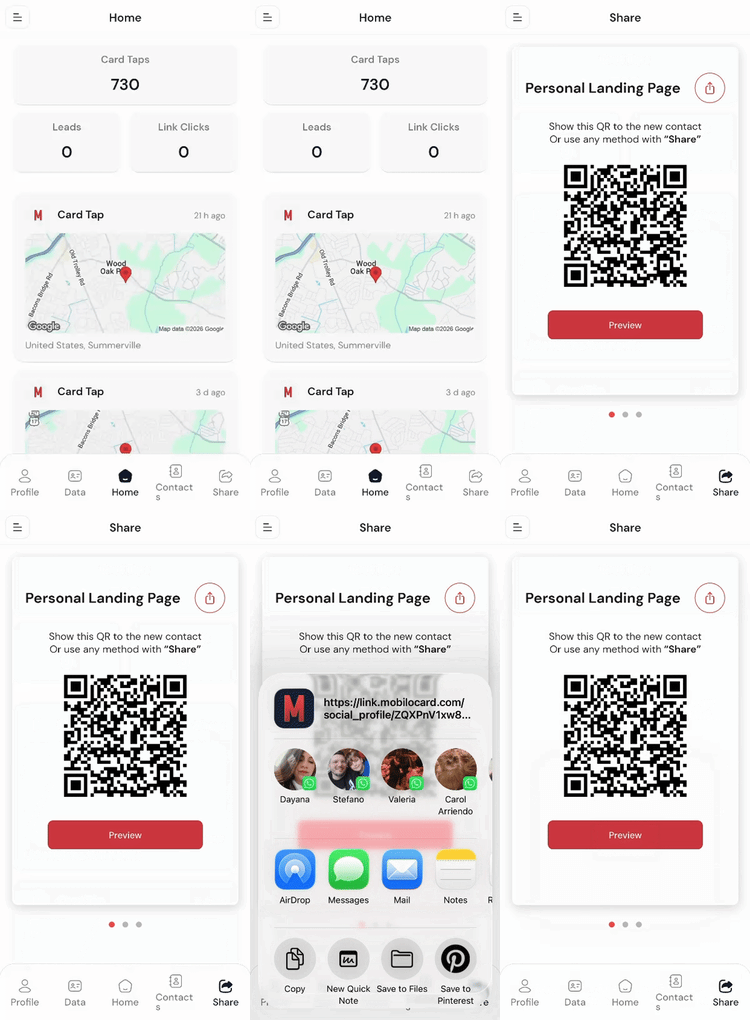
Now, let’s add that link to your LinkedIn Profile. Here are some options.
Option 1: Add Mobilo link to your Contact Info
-
Go to your LinkedIn profile.
-
Click the pencil icon () near your profile header.
-
Scroll to Contact Info → Edit.
-
Under Website, paste your Mobilo link.
-
Save.
Option 2: Add Mobilo link in your About Section
-
On your profile, click the pencil icon in the About section.
-
Add a sentence like:
-
“You can connect with me directly through my Mobilo card: [your link]”
-
Save.
Option 3: Add Mobilo link as a Custom Button (Featured Section)
-
Scroll to the Featured section of your profile.
-
Click + → Add a link.
-
Paste your Mobilo link.
-
Give it a title (e.g., “My Digital Business Card”).
-
Save.