At Mobilo, we want to provide you with a business and networking tool. That's why you can use your Mobilo card in four distinct modes, each with its unique action assigned.
Switching modes
Here's a simple guide on how to seamlessly switch between card modes.
Through the website
-
Visit our site at app.mobilocard.com.
-
Log in using the email address your card is linked to.
-
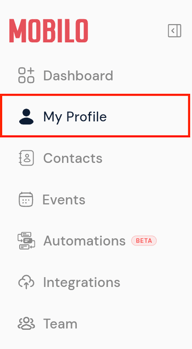
Navigate to the left-hand side panel and click on 'My Profile'.
-
Go to the 'Cards' tab shown at the top. Here, you'll find a complete list of all the cards linked to your account if you have more than one.

-
Select the card for which you wish to change the mode, if needed. Next, click on 'Card Mode', and a dropdown menu will appear, offering you the choice of our four card modes to select from.

-
Once you click on the option you wish to use, the card is automatically changed to that mode.
Through the App
-
Download the Mobilo Card App from App Store or Google Play Store.
-
Log in using the email address your card is linked to.
-
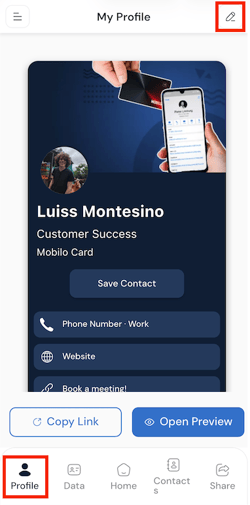
Go to the 'Profile' section found in the bar at the bottom of the screen.
-
Click the small pencil icon in the upper right corner.
-
Scroll through the different tabs at the top, and click on 'Cards'.

-
Look for the card you wish to change the mode for, then tap on the toggle icon.
-
You'll be presented with the four available modes. Once you've made your selection, click on 'Select'.

-
Your card is now automatically set to that mode.
What are our four modes?
What is 'Business Card Mode'?
When you activate the Business Card Mode feature on your Mobilo Card, it opens up an effortless way to share your business card information with others. With just a tap, you can swiftly share your contact details, enhancing networking opportunities and facilitating smoother professional interactions.
After tapping your card in Business Card mode, you'll see the following:

What is 'Personal Landing Page Mode'?
This mode allows you to share and raise awareness of your digital activities and social media campaigns.
If you’re a freelancer, this mode can be your default use. You can not only showcase your portfolio or work on social media, but you can also share your payment details (PayPal, Venmo) and app links (App Store, Play Store).
With the 'Personal Landing Page Mode', you'll be able to share your contact card and your social links as a personal landing page:

To edit and update the details shared by the 'Personal Landing Page'
-
Visit our web portal at app.mobilocard.com or download the Mobilo Card App from the Apple Store or Google Play Store.
-
Log in with the email address entered during the card configuration.
-
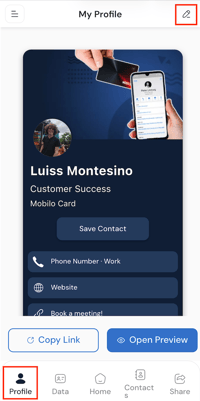
Tap on Profile and then on the pencil icon at the top. Then, you'll be able to fill out all the information you would like to share with others.
Personal Landing Page Mode Analytics:
With the help of the Link Tracking feature, you can analyze the number of times your social media links were accessed. You can turn on/off this feature. Click here to learn more about the Link Tracking feature.
What is 'Lead Generation Mode'?
In the fast-paced world of business, capturing leads efficiently is paramount. Lead Generation Mode transforms your Mobilo Card into a powerful tool for gathering contact information from potential leads.
By allowing recipients to share their details with a tap on their phone, you eliminate barriers and increase the chances of turning connections into valuable leads. This mode is ideal for sales teams participating in trade shows, conferences, exhibitions, and other similar events.
When you tap the card in Lead Generation mode, people will see a form to enter their details, and they hit Share for their information to be sent.
After someone has submitted the form, you will be able to see the details you've collected through the 'Contacts' tab on our app, and you can choose how and when you'd like to share your details with them.

Benefits of Lead Gen Mode
-
Collect contact information.
-
Send leads directly to your CRM or 6,000+ apps through Zapier.
-
Be notified when someone clicks a link in your contact card.
What is shown when someone taps my card in Lead Generation mode?
The initial display will feature fields for email and phone number, allowing your lead to input their details. After the email address is typed in, additional fields will appear to enter rest of the information, such as name, title, and company. Custom fields, if added, will also be visible in this section.

After clicking on Share, the lead's details will be stored in your Mobilo App account, and they will be directed to your contact information. From there, they have the option to save your contact details, which can be disabled as well.

Customize your Lead Generation Preferences
To configure your preferences
-
Go to app.mobilocard.com and log in.
-
Click on My Profile.
-
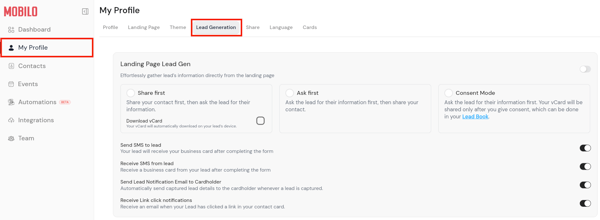
Select the Lead Generation tab at the top of the screen.
Here, you'll be able to
-
Enable and disable the Landing Page Lead Gen mode, which allows you to gather leads via your Personal Landing Page, by turning the toggle on and off.
-
Select how you'd like to present your information through Ask First, Share First, or Consent Mode.
-
Enable and disable SMS notifications and email notifications for Link Clicks.
-
Further customize the lead generation form by adding text fields, checkboxes, drop-downs, and terms and conditions. To do so, you may go to Input Fields > Add Fields.

Important: When someone clicks on any of the links that you may have available to share, you will receive an email to let you know! This allows you to:
🔥 Prioritize Outreach Faster
👀 Qualify Leads Faster
📈 Measure Engagement
🤝 Strengthen the Relationship

What is 'Link to URL Mode'?
Have you ever been in a setting where people already know you, but you want to share Value Content rather than your business card? Imagine having a virtual brochure, presentation, portfolio, menu, or webshop at your fingertips.
'Link to URL Mode' transforms your Mobilo Card into a gateway for sharing a diverse range of digital content. Whether you're a business professional showcasing your latest projects or an executive sharing a presentation at a meeting, this mode ensures that your audience can easily access your content with a single tap.
When people tap your card on Link to URL Mode, they will be automatically taken to the page that you set up, and you will be able to enter the URL you'd like to share when changing the mode of the card.

Any questions?
Kindly contact us, and we will be happy to help!
If you are already chatting with us, type "Live Support," and you will be connected with one of our specialists, or contact us via email at support@mobilocard.com, and we can answer any questions you may have.